Create the reveal people are sharing on X

Free Tap and Hold Image Generator

Seen the hidden pictures people are sharing on X? Make your own tap and hold image in seconds. Choose what appears in the timeline, keep the full picture hidden until the hold, and give people a reason to stop and look. Free, no account, no watermark—every picture stays in your browser.

Free — no signup or watermarkPrivate — pictures stay on your deviceReady to copy and post on X

Timeline preview

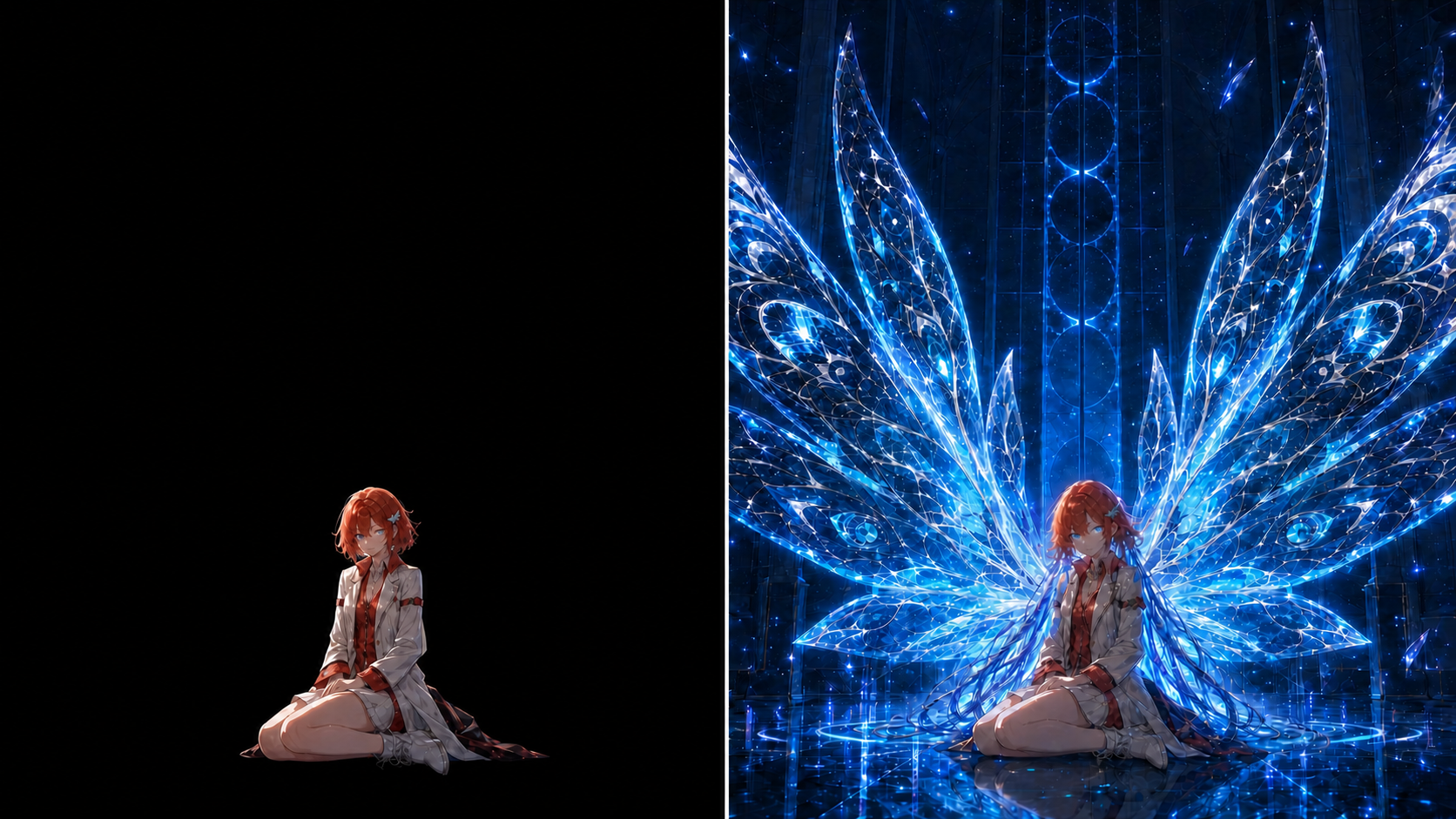
Tap and hold image preview showing a hidden character on a black background

Tap and hold

Tap and hold image reveal showing the character with glowing blue wings

Tap and hold image generator

Your pictures stay on this device

Create a tap and hold image from one picture

Hiding method

Show almost nothing before the reveal.

01 · Original image

Upload your picture

02 · Preview

Preview the exact PNG

Choose, preview, post

How to make a tap and hold image

A good tap and hold image has two clear moments: a first view that creates curiosity and a complete view that rewards the hold. One recognizable detail, pair of eyes, outline, symbol, or short word is enough for the first view.

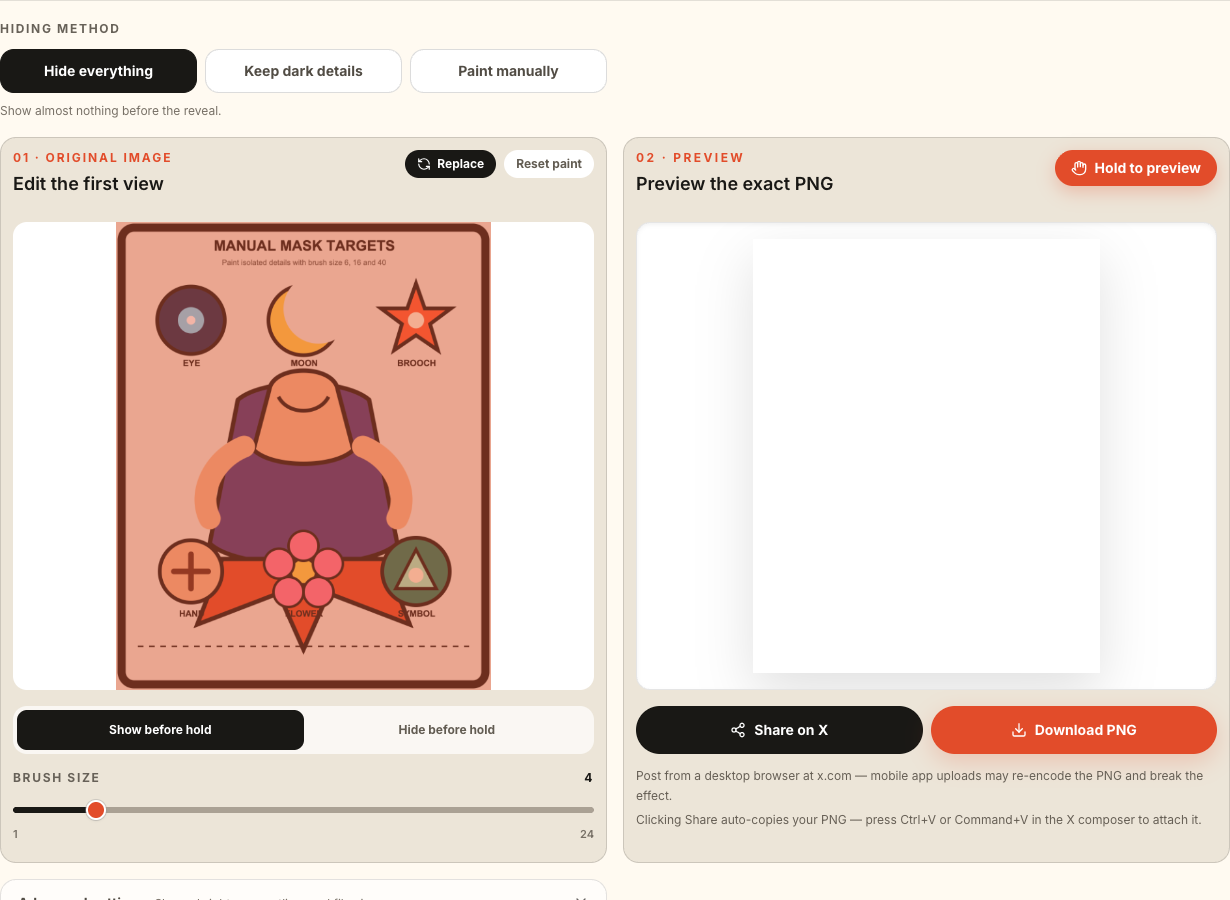
One image reveal editor showing the Hiding method, editable first view, and live hold preview
Reveal one complete picture

Choose what people see before they hold

Upload the complete picture you want people to discover. Hide everything, leave one clue, or paint the exact areas that should remain visible before the hold.

  1. 1Choose One image reveal and upload a PNG, JPEG, or WebP under 20 MB. Select the complete picture you want people to see after they hold it.
  2. 2Choose Hide everything, Keep dark details, or Paint manually. Then use Show more to add a clue and Hide more to remove any area that reveals too much.
  3. 3Press and hold the preview to reveal the complete picture. Release to return to the clue, then keep editing until both moments are immediately clear.
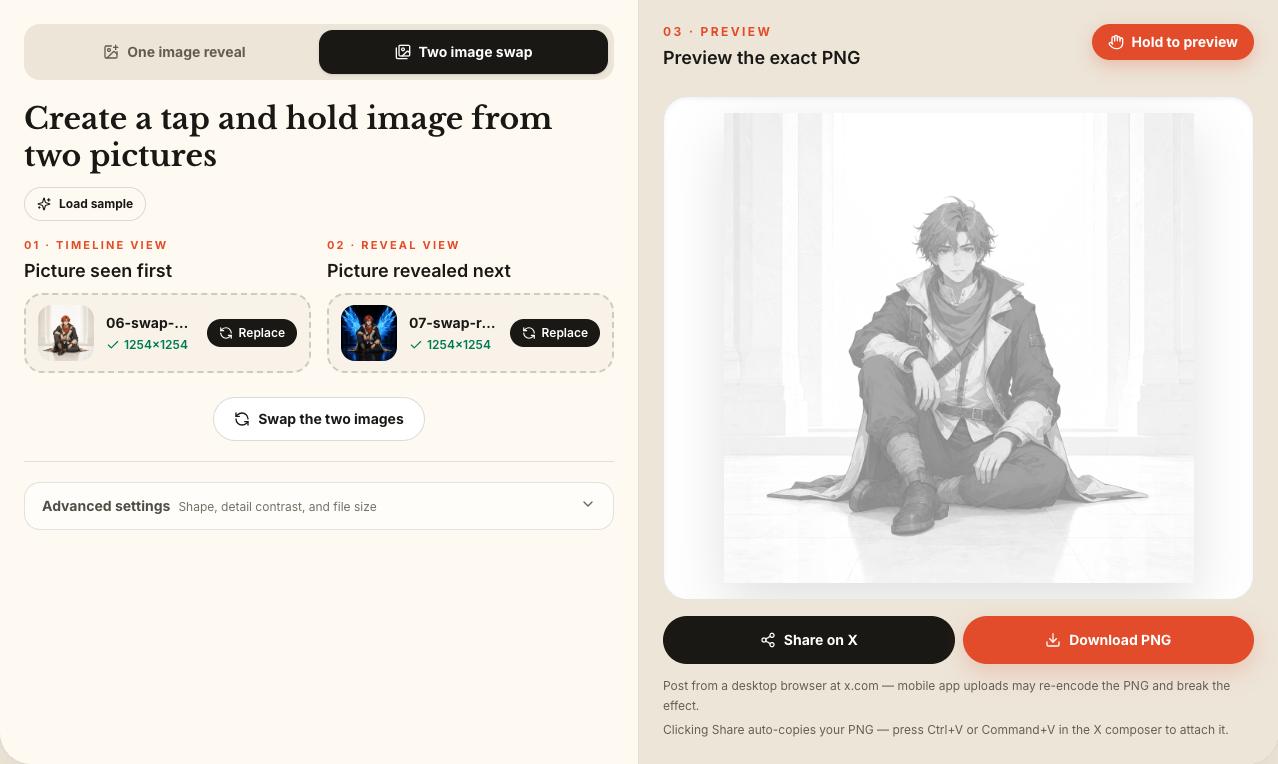
Two image swap editor showing the first picture, reveal picture, and live hold preview
Turn one picture into another

Upload the first view and the reveal

Use this mode when people should see one picture first and discover a different, related picture after holding. The tool needs both pictures.

  1. 1Choose Two image swap. Upload the first picture, then upload the related picture people should discover after the hold.
  2. 2Use pictures with the subject in the same place and a similar crop. If the order is wrong, click Swap the two images—there is no need to upload them again.
  3. 3Hold the preview and compare both views. The result is intentionally grayscale. If either picture is hard to read, open Advanced settings, adjust Detail contrast a little, and preview again.
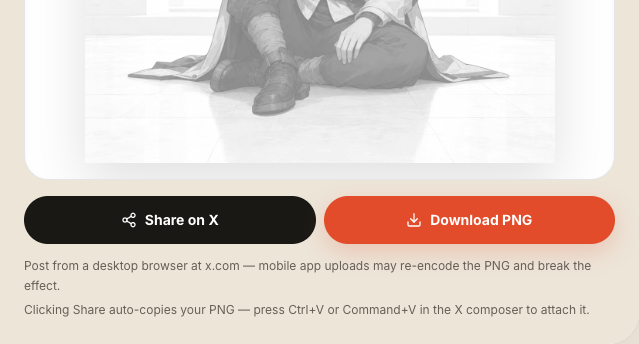
Share on X and Download PNG buttons beneath the finished tap and hold preview
Post the result

Share the finished tap and hold image

When both views look right, click Share on X. The generator copies the finished PNG and opens an X composer with a short caption and site link.

  1. 1On desktop, click Share on X, wait for the copied message, then press Ctrl+V or Command+V once in the X composer to attach the tap and hold image.
  2. 2If your browser cannot copy the PNG, the exact file downloads automatically. Attach that downloaded .png instead.
  3. 3Do not take a screenshot, convert the file to JPEG, or send it through another app before posting. Those steps can remove transparency and destroy the reveal.

Post without breaking the effect

How to post a tap and hold image on X

The finished tap and hold image depends on PNG transparency, so keep the file unchanged between the generator and X. On desktop, Share on X copies the PNG and opens the composer. Paste once to attach the tap and hold image.

Post the tap and hold image directly instead of passing it through another editor. Add a short instruction such as “tap and hold” or “長押しで変化,” then inspect the published post itself.

  1. 1

    Confirm that the filename ends in .png and the finished file is below X’s 5 MB photo limit.

  2. 2

    Click Share on X. Paste the copied PNG into the composer, or attach the exact downloaded file if clipboard access is unavailable.

  3. 3

    Do not replace the PNG with a screenshot, JPEG conversion, or a copy saved by another app. Those changes can remove transparency.

  4. 4

    After publishing, check that the post first shows the clue you selected. On mobile, press and hold the posted image to check the complete picture.

  5. 5

    If the complete tap and hold image does not appear, keep the published post open and use the device-specific checks below before rebuilding the picture.

The hidden-picture format

What is a tap and hold image?

A tap and hold image is a transparent PNG made for the hidden-picture effect on X. The post first shows the clue chosen by the creator. Holding the picture in the mobile app reveals the complete artwork. You may also see this format called tap to reveal, hidden image, click to reveal, Kakushie, or 長押しで変化.

The hidden area uses a fine transparent pattern while the clue remains solid. X states that uploaded photos are automatically scaled for display. In the example above, the first view hides the fine pattern and the larger view shows the complete tap and hold image. X does not publish the exact processing rule for this reveal, so the published post is the final check.

Read X’s official photo requirements

Fix common problems

The full picture does not appear on X—what can you try?

When the tap and hold image works in the generator but not after posting, check the uploaded file and X’s documented media controls before editing the picture again.

01Confirm the generated PNG was posted

The reveal depends on transparency in the generated PNG. X accepts PNG photos up to 5 MB and automatically scales uploaded photos for display. Confirm that the attachment still ends in .png, is below 5 MB, and is the exact file copied or downloaded from the generator.

02On iPhone, use X’s high-quality control

X Help for iOS says Data Saver loads images in lower quality. When Data Saver is on, long-press the image or open More, then select Load high quality. X documents this as a high-quality image control, not as a guarantee for this reveal effect.

03On Android, check Data usage

X Help for Android says Data Saver loads images in lower quality and provides high-quality image settings. Open Settings and privacy → Data usage, turn Data Saver off, allow high-quality images, and reopen the tap and hold image post.

04Use the published post as the final check

X states that uploaded photos are automatically scaled for display. On the Android device we tested, the complete tap and hold image appeared behind the action menu after a long press. That is one verified example, not a published compatibility guarantee.

Your images stay on this device

Everything happens in your browser. Your source images and finished PNG are never uploaded.

  • No image uploads
  • No account
  • No cloud copy

Tap and hold image FAQ

Straight answers about creating, posting, and checking a tap and hold image on X.

01

Is the tap and hold image generator free?

+

Yes. Create, preview, copy, and download a tap and hold image without payment, an account, credits, or a watermark.

02

Are my pictures uploaded?

+

No. Painting, previewing, and PNG export happen in your browser. The source and finished tap and hold image are not sent to an image-processing server.

03

Which files can I use?

+

Upload PNG, JPEG, or WebP files up to 20 MB. The result downloads as a transparent PNG. Keep that format when posting the tap and hold image.

04

Why does the generator export PNG8?

+

PNG8 keeps indexed transparency and the fine hidden-image pattern used by the reveal. JPEG removes transparency, while re-exporting through another editor can change the pattern. Post the tap and hold image PNG8 downloaded by the generator without converting it.

05

Can I post a tap and hold image from the X mobile app?

+

Yes. X documents photo posting from its iOS and Android apps and accepts PNG photos up to 5 MB. Attach the exact PNG downloaded from the generator, then check the published post because X automatically scales photos for display.

06

What image size should I choose for a tap and hold image?

+

Keep original ratio unless you deliberately want a square, portrait, or wide crop. The platform requirement that matters is the finished tap and hold image file: X accepts photos up to 5 MB.

07

What can I try when the full tap and hold image does not appear?

+

Upload the exact tap and hold image PNG again and confirm that it is below 5 MB. On iPhone with Data Saver on, X documents long-press or More followed by Load high quality. On Android, turn Data Saver off and allow high-quality images under Data usage. A 4K menu item is not a required or universal step.

08

Will a tap and hold image display correctly on iPhone?

+

X has not published a compatibility guarantee for this reveal effect on iPhone. Its iOS help confirms the high-quality path used when Data Saver is on: long-press the image or open More, then choose Load high quality. Check the published tap and hold image on an actual iPhone.

09

Will a tap and hold image display correctly on Android?

+

On the Android device we tested, the full picture appeared behind the action menu after a long press. X has not published a guarantee for every Android device or post. Its Android help confirms that Data Saver lowers image quality and that high-quality image settings are available.

10

Why must I post the PNG directly?

+

The tap and hold image relies on transparency. JPEG and screenshots flatten that information. Directly pasting or attaching the downloaded PNG preserves the reveal.

11

Why can the X result differ from the preview?

+

The preview shows the file created by the generator. X states that it automatically scales uploaded photos for display, and its mobile help states that Data Saver loads lower-quality images. Check the published post because X does not document the exact processing used for this reveal effect.

12

What should I write in the X post?

+

Tell people exactly what to do. Use a short instruction such as “tap and hold to reveal,” “press and hold,” or “長押しで変化.” Keep the instruction in the post text so people notice the interaction before scrolling past.